
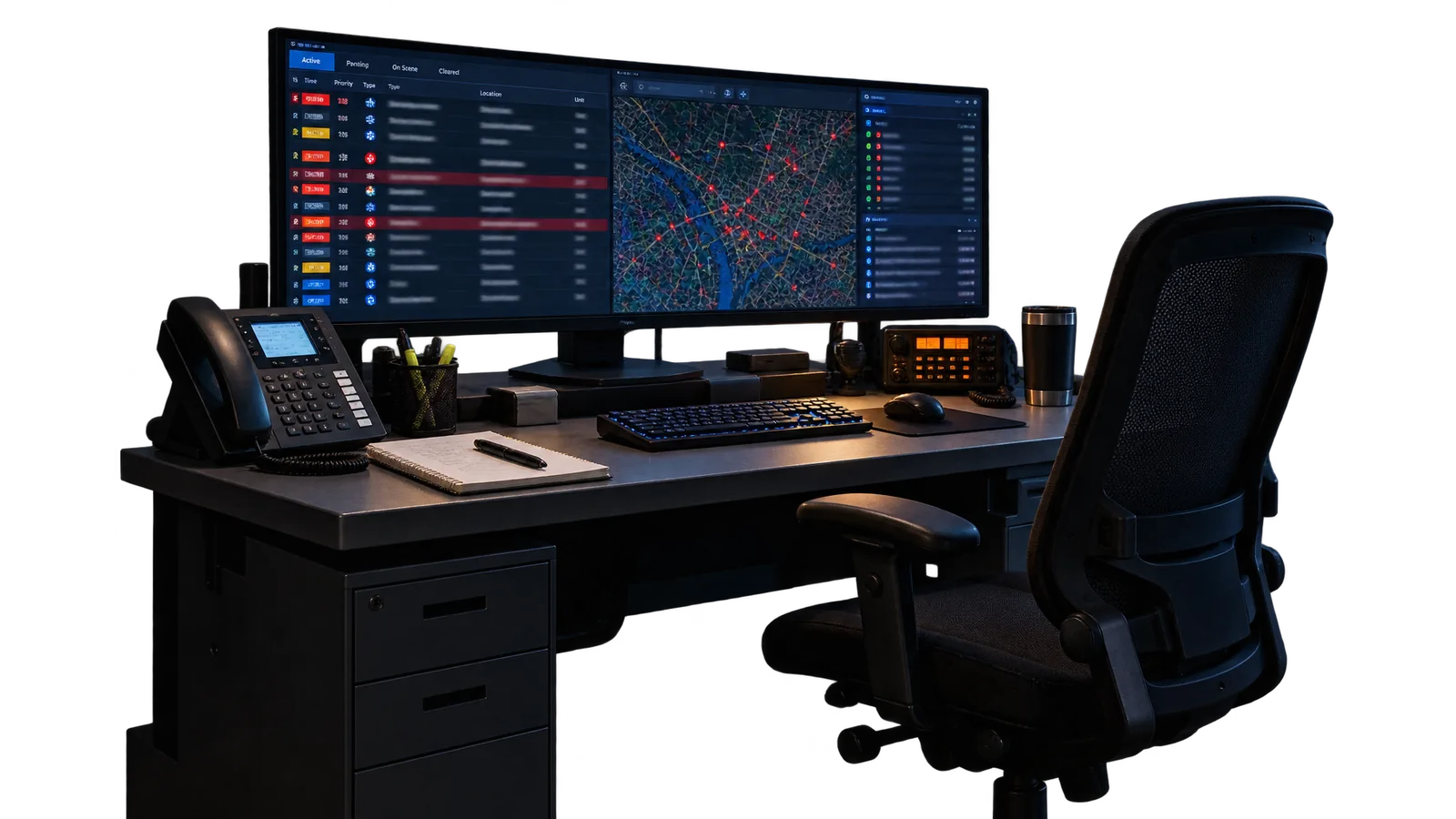
A new site appears for the duty shift only with a complete card: address, responsible people, described loops. The test alarm is a mandatory gate: until the dispatcher closes it, the site does not count as accepted.
You will need
The ISS PRO console, the panel number, the site record
Important
A site counts as taken under guard only after the dispatcher has received and closed a test alarm.
- 1
Create the record
Address, responsible people, phone numbers and the response procedure.
- 2
Bind the panel
The panel number goes into the record and the site appears in the duty shift list.
- 3
Describe the loops
Each loop number gets a room name and a type: fire or intruder.
- 4
Test alarm
The installer triggers a detector, the dispatcher takes the event and checks the loop number.
- 5
Take it under guard
The dispatcher closes the test incident and switches the site to live mode.
The result
The site is live: events flow into the duty-shift queue, and every loop shows its room and type.